Command line
The stacklane binary is both the server and the administration tool. It is installed as /usr/bin/stacklane.
Run commands as the service user#
Run every command as the stacklane user:
sudo -u stacklane stacklane <command>
The stacklane user can read the configuration file and the secret key, and owns the database. If you run a command as root on a new system, the database files can end up owned by root, and the service can no longer write to them.
Synopsis#
stacklane [--config <file>] <command> [options]
| Command | Description |
|---|---|
serve | Run the server |
keygen | Create the secret key if it does not exist |
migrate | Apply database migrations |
setup | Create the platform owner interactively |
check | Check the configuration, database and email |
backup | Write a consistent copy of the database |
user create | Create an account |
user password | Set a new password and sign out all sessions |
user staff | Change the platform staff role of an account |
user reset-two-factor | Remove two-factor authentication from an account |
import whmcs | Import data from WHMCS |
Use --help to see the options of any command:
stacklane --help
stacklane user create --help
Global options#
| Option | Environment variable | Default | Description |
|---|---|---|---|
-c, --config <file> | STACKLANE_CONFIG | /etc/stacklane/stacklane.toml | Configuration file to use |
-V, --version | Print the version and exit | ||
-h, --help | Print help and exit |
The configuration file must exist. Every command, including keygen, reads it first. See Configuration.
--config works before or after the command name:
stacklane --config ./dev.toml check
stacklane check --config ./dev.toml
--version#
stacklane --version
In a terminal, this prints the Stacklane logo with the version.
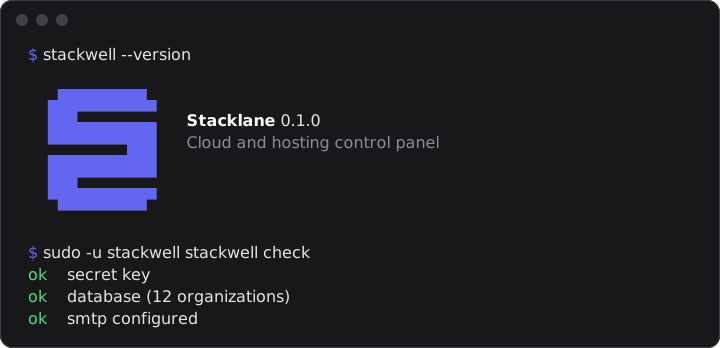
When the output goes to a file or a pipe, it prints one line:
stacklane 0.1.0
Set NO_COLOR to print the logo without colors.
serve#
Runs the server: the HTTP API, the web interface and the background workers.
stacklane serve
The systemd unit runs this command. You normally do not run it by hand on a production server. Use systemctl instead:
sudo systemctl start stacklane
serve needs the secret key. If the key is missing, it stops with secret key missing; run stacklane keygen first. It applies pending database migrations before it starts.
At start, serve logs warnings when:
mail.smtp_urlis not set- no platform owner exists yet
cloud.simulateorbilling.simulateis enabled
serve stops cleanly on SIGTERM or Ctrl+C. It stops accepting connections, finishes open requests and closes the database.
keygen#
Creates the secret key file named in security.secret_key_file.
sudo -u stacklane stacklane keygen
If the file already exists, keygen does nothing and prints:
Secret key already exists at /etc/stacklane/secret.key.
keygen never overwrites a key. The package runs it during the first installation, so you normally do not need it.
migrate#
Creates the database if needed and applies all pending migrations.
sudo -u stacklane stacklane migrate
Database is up to date.
The package runs migrate after every installation and upgrade, and the systemd unit runs it before every start. You only need it by hand when you run Stacklane in another way.
setup#
Creates the platform owner account. Use it once, after the installation.
sudo -u stacklane stacklane setup
setup:
- creates the secret key if it does not exist
- creates or migrates the database
- prints the version and the panel address
- asks for the email address, full name, organization name and password
- creates a new organization with the owner as its administrator and gives the account the staff role
owner
The name and organization are required and can be up to 80 characters. The password must be 10 to 128 characters and you type it twice.
If an owner already exists, setup prints this and stops:
A platform owner already exists. Use `stacklane user` to manage accounts.
check#
Checks the installation and prints one line per item.
sudo -u stacklane stacklane check
ok    secret key
ok    database (12 organizations)
ok    smtp configured
| Line | Meaning |
|---|---|
ok secret key | The secret key file exists and is valid. |
ok database (N organizations) | The database opens and is migrated. |
ok smtp configured | mail.smtp_url is set and valid. |
warn smtp not configured, email is written to the log | No SMTP server is set. |
warn public_url is not https; cookies are not marked secure | server.public_url uses http. |
fail secret key: ... | The key file is missing, unreadable or malformed. |
fail database: ... | The database cannot be opened or migrated. |
fail no platform owner; run stacklane setup | No account has the staff role owner. |
fail mail: ... | mail.from or mail.smtp_url is invalid. |
check exits with status 0 when there is no fail line, and with status 1 otherwise. Warnings do not change the exit status. check does not connect to the SMTP server.
backup#
Writes a consistent copy of the database to a new file.
stacklane backup <target>
| Argument | Description |
|---|---|
<target> | Path of the backup file. The file must not exist yet. |
sudo -u stacklane mkdir -p /var/lib/stacklane/backups
sudo -u stacklane stacklane backup /var/lib/stacklane/backups/stacklane-$(date +%Y%m%d%H%M%S).db
Backup written to /var/lib/stacklane/backups/stacklane-20261121120000.db
You can run backup while the service is running. The stacklane user must be able to write to the target directory. The backup does not contain the secret key. See Operations.
user create#
Creates a new account in a new organization. The user is the administrator of that organization and the email address is marked as verified.
stacklane user create --email <email> --name <name> [--organization <name>] [--staff-role <role>] [--password-stdin]
| Option | Required | Description |
|---|---|---|
--email <email> | yes | Email address of the account. It must not be in use. |
--name <name> | yes | Full name of the user. |
--organization <name> | no | Name of the new organization. Defaults to the user's name. |
--staff-role <role> | no | Platform staff role: support, billing, admin or owner. Without this option the account is a normal customer account. |
--password-stdin | no | Read the password from standard input instead of asking for it. |
Without --password-stdin, the command asks for the password twice. The password must be 10 to 128 characters.
Create a support staff member:
sudo -u stacklane stacklane user create \
  --email support@example.com \
  --name "Support Desk" \
  --organization "Example Hosting" \
  --staff-role support
Create an account from a script:
printf '%s\n' "$NEW_PASSWORD" | sudo -u stacklane stacklane user create \
  --email customer@example.com \
  --name "Example Customer" \
  --password-stdin
Created account for customer@example.com.
user password#
Sets a new password for an account and signs out all its sessions.
stacklane user password --email <email> [--password-stdin]
sudo -u stacklane stacklane user password --email owner@example.com
The command asks for the new password twice. With --password-stdin it reads the password from the first line of standard input instead, for use in scripts:
printf '%s\n' "$NEW_PASSWORD" | sudo -u stacklane stacklane user password --email owner@example.com --password-stdin
Password updated for owner@example.com. All sessions were signed out.
user staff#
Changes the platform staff role of an account.
stacklane user staff --email <email> --role <role>
| Option | Description |
|---|---|
--email <email> | Email address of the account. |
--role <role> | support, billing, admin, owner, or none to remove the staff role. |
sudo -u stacklane stacklane user staff --email admin@example.com --role admin
Updated staff role for admin@example.com.
You cannot remove the owner role from the last owner. The command stops with ... is the last platform owner. Make another account owner first.
user reset-two-factor#
Removes two-factor authentication and all recovery codes from an account, and signs out all its sessions. Use it when a user has lost both the authenticator app and the recovery codes.
stacklane user reset-two-factor --email <email>
sudo -u stacklane stacklane user reset-two-factor --email customer@example.com
Two-factor authentication removed for customer@example.com.
Check the identity of the user before you do this. If the organization requires two-factor authentication, the user must set it up again at the next sign-in.
import whmcs#
Imports clients, users, credit, domains, hosting services and unpaid invoices from WHMCS through the WHMCS API.
stacklane import whmcs --url <url> --identifier <identifier> [--secret <secret>] [--dry-run]
| Option | Environment variable | Description |
|---|---|---|
--url <url> | WHMCS API URL, for example https://billing.example.com/includes/api.php. Must use https, except for localhost and 127.0.0.1. | |
--identifier <identifier> | API credential identifier. | |
--secret <secret> | STACKLANE_WHMCS_SECRET | API credential secret. If you leave it out, the command asks for it. |
--dry-run | Count the clients that would be imported without changing anything. |
sudo -u stacklane stacklane import whmcs \
  --url https://billing.example.com/includes/api.php \
  --identifier AbCdEf123456 \
  --dry-run
Do not pass --secret on the command line on a shared server. Other users can see command lines, and the shell may save them in its history. Let the command ask for the secret, or use the environment variable.
Read Migrating from WHMCS before you run a real import.
Exit status#
| Status | Meaning |
|---|---|
0 | The command succeeded. |
1 | The command failed. The reason is printed on standard error as error: .... |
2 | The command line was invalid, for example an unknown option. |